59. 상태 표시줄 커스터마이즈
셸 스크립트 작성·JSON 필드·ANSI 색상·트러블슈팅 등 상태 바 설정 가이드
상태 표시줄 커스터마이즈
Claude Code에서 컨텍스트 윈도우 사용량, 비용, git 상태를 모니터링하기 위한 사용자 지정 상태 바를 구성합니다
상태 표시줄은 Claude Code 하단에 위치한 커스터마이즈 가능한 바로, 사용자가 구성한 모든 셸 스크립트를 실행합니다. stdin을 통해 JSON 세션 데이터를 수신하고 스크립트가 출력하는 내용을 표시하여, 컨텍스트 사용량, 비용, git 상태 또는 추적하고 싶은 기타 정보를 지속적으로 한눈에 볼 수 있게 해줍니다.
상태 표시줄은 다음과 같은 경우에 유용합니다:
- 작업하면서 컨텍스트 윈도우 사용량을 모니터링하고 싶을 때
- 세션 비용을 추적해야 할 때
- 여러 세션에서 작업하며 이를 구분해야 할 때
- git 브랜치와 상태를 항상 표시하고 싶을 때
다음은 첫 번째 줄에 git 정보를, 두 번째 줄에 색상으로 구분된 컨텍스트 바를 표시하는 멀티라인 상태 표시줄 예시입니다.
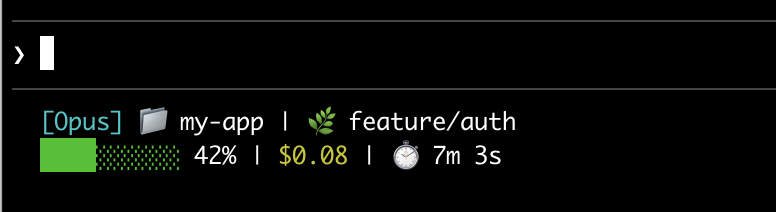
이 페이지에서는 기본 상태 표시줄 설정을 안내하고, Claude Code에서 스크립트로의 데이터 흐름 방식을 설명하며, 표시할 수 있는 모든 필드를 나열하고, git 상태, 비용 추적, 프로그레스 바 등 일반적인 패턴을 위한 바로 사용 가능한 예제를 제공합니다.
상태 표시줄 설정하기
/statusline 명령어를 사용하여 Claude Code가 스크립트를 생성하도록 하거나, 수동으로 스크립트를 생성하여 설정에 추가할 수 있습니다.
/statusline 명령어 사용하기
/statusline 명령어는 표시하고 싶은 내용을 설명하는 자연어 지시를 받습니다. Claude Code는 ~/.claude/에 스크립트 파일을 생성하고 설정을 자동으로 업데이트합니다:
/statusline show model name and context percentage with a progress bar
수동으로 상태 표시줄 구성하기
사용자 설정(~/.claude/settings.json, ~는 홈 디렉토리) 또는 프로젝트 설정에 statusLine 필드를 추가합니다. type을 "command"로 설정하고 command를 스크립트 경로 또는 인라인 셸 명령어로 지정합니다. 스크립트 작성에 대한 전체 안내는 상태 표시줄 단계별 만들기를 참조하세요.
{
  "statusLine": {
    "type": "command",
    "command": "~/.claude/statusline.sh",
    "padding": 2
  }
}
command 필드는 셸에서 실행되므로, 스크립트 파일 대신 인라인 명령어를 사용할 수도 있습니다. 이 예제는 jq를 사용하여 JSON 입력을 파싱하고 모델 이름과 컨텍스트 백분율을 표시합니다:
{
  "statusLine": {
    "type": "command",
    "command": "jq -r '\"[\\(.model.display_name)] \\(.context_window.used_percentage // 0)% context\"'"
  }
}
선택적 padding 필드는 상태 표시줄 콘텐츠에 추가 수평 간격(문자 단위)을 추가합니다. 기본값은 0입니다. 이 패딩은 인터페이스의 기본 간격에 추가되는 것이므로, 터미널 가장자리로부터의 절대 거리가 아닌 상대적 들여쓰기를 제어합니다.
상태 표시줄 비활성화
/statusline을 실행하고 상태 표시줄을 제거하거나 지우도록 요청하세요(예: /statusline delete, /statusline clear, /statusline remove it). settings.json에서 statusLine 필드를 수동으로 삭제할 수도 있습니다.
상태 표시줄 단계별 만들기
이 안내에서는 현재 모델, 작업 디렉토리, 컨텍스트 윈도우 사용 백분율을 표시하는 상태 표시줄을 수동으로 생성하여 내부 동작을 보여줍니다.
참고:
/statusline에 원하는 내용을 설명하면 이 모든 것이 자동으로 구성됩니다.
이 예제들은 macOS와 Linux에서 작동하는 Bash 스크립트를 사용합니다. Windows에서는 PowerShell 및 Git Bash 예제를 위해 Windows 구성을 참조하세요.
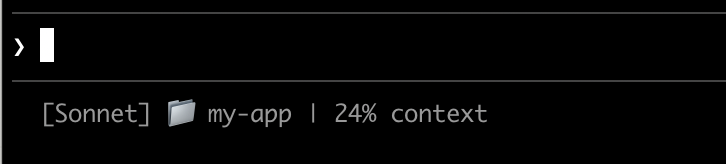
Step 1: JSON을 읽고 출력을 생성하는 스크립트 만들기
Claude Code는 stdin을 통해 JSON 데이터를 스크립트에 전송합니다. 이 스크립트는 설치가 필요할 수 있는 커맨드라인 JSON 파서인 jq를 사용하여 모델 이름, 디렉토리, 컨텍스트 백분율을 추출한 다음 포맷된 줄을 출력합니다.
이것을 ~/.claude/statusline.sh에 저장하세요(~는 macOS에서는 /Users/username, Linux에서는 /home/username과 같은 홈 디렉토리입니다):
#!/bin/bash
# Read JSON data that Claude Code sends to stdin
input=$(cat)

# Extract fields using jq
MODEL=$(echo "$input" | jq -r '.model.display_name')
DIR=$(echo "$input" | jq -r '.workspace.current_dir')
# The "// 0" provides a fallback if the field is null
PCT=$(echo "$input" | jq -r '.context_window.used_percentage // 0' | cut -d. -f1)

# Output the status line - ${DIR##*/} extracts just the folder name
echo "[$MODEL] 📁 ${DIR##*/} | ${PCT}% context"
Step 2: 실행 가능하게 만들기
셸이 실행할 수 있도록 스크립트를 실행 가능으로 표시합니다:
chmod +x ~/.claude/statusline.sh
Step 3: 설정에 추가하기
Claude Code에 스크립트를 상태 표시줄로 실행하도록 지시합니다. ~/.claude/settings.json에 다음 구성을 추가합니다. type을 "command"("이 셸 명령어를 실행")로 설정하고 command를 스크립트로 지정합니다:
{
  "statusLine": {
    "type": "command",
    "command": "~/.claude/statusline.sh"
  }
}
상태 표시줄이 인터페이스 하단에 나타납니다. 설정은 자동으로 다시 로드되지만, Claude Code와의 다음 상호작용까지 변경 사항이 나타나지 않습니다.
상태 표시줄 작동 방식
Claude Code는 스크립트를 실행하고 stdin을 통해 JSON 세션 데이터를 파이프합니다. 스크립트는 JSON을 읽고 필요한 것을 추출한 다음 stdout으로 텍스트를 출력합니다. Claude Code는 스크립트가 출력하는 내용을 그대로 표시합니다.
업데이트 시점
스크립트는 새로운 어시스턴트 메시지가 도착할 때, 권한 모드가 변경될 때, 또는 vim 모드가 전환될 때 실행됩니다. 업데이트는 300ms로 디바운스되어 빠른 변경이 함께 일괄 처리되고 상황이 안정되면 스크립트가 한 번 실행됩니다. 스크립트가 아직 실행 중일 때 새로운 업데이트가 트리거되면, 진행 중인 실행이 취소됩니다. 스크립트를 편집해도 Claude Code와의 다음 상호작용이 업데이트를 트리거할 때까지 변경 사항이 나타나지 않습니다.
스크립트가 출력할 수 있는 것
- 멀티라인: 각
echo또는print문은 별도의 행으로 표시됩니다. 멀티라인 예제를 참조하세요. - 색상: 녹색을 위한
\033[32m과 같은 ANSI 이스케이프 코드를 사용합니다(터미널이 지원해야 합니다). 색상이 있는 git 상태 예제를 참조하세요. - 링크: OSC 8 이스케이프 시퀀스를 사용하여 텍스트를 클릭 가능하게 만듭니다(macOS에서 Cmd+클릭, Windows/Linux에서 Ctrl+클릭). iTerm2, Kitty, WezTerm과 같이 하이퍼링크를 지원하는 터미널이 필요합니다. 클릭 가능한 링크 예제를 참조하세요.
참고: 상태 표시줄은 로컬에서 실행되며 API 토큰을 소비하지 않습니다. 자동완성 제안, 도움말 메뉴, 권한 프롬프트 등 특정 UI 상호작용 중에는 일시적으로 숨겨집니다.
사용 가능한 데이터
Claude Code는 stdin을 통해 스크립트에 다음 JSON 필드를 전송합니다:
| 필드 | 설명 |
|---|---|
model.id, model.display_name | 현재 모델 식별자 및 표시 이름 |
cwd, workspace.current_dir | 현재 작업 디렉토리. 두 필드 모두 동일한 값을 포함하며, workspace.project_dir와의 일관성을 위해 workspace.current_dir를 사용하는 것이 좋습니다. |
workspace.project_dir | Claude Code가 실행된 디렉토리로, 세션 중 작업 디렉토리가 변경되면 cwd와 다를 수 있습니다 |
cost.total_cost_usd | 세션 총 비용(USD) |
cost.total_duration_ms | 세션 시작 이후의 총 경과 시간(밀리초) |
cost.total_api_duration_ms | API 응답 대기에 소요된 총 시간(밀리초) |
cost.total_lines_added, cost.total_lines_removed | 변경된 코드 줄 수 |
context_window.total_input_tokens, context_window.total_output_tokens | 세션 전체의 누적 토큰 수 |
context_window.context_window_size | 최대 컨텍스트 윈도우 크기(토큰 단위). 기본 200000, 확장 컨텍스트를 지원하는 모델의 경우 1000000. |
context_window.used_percentage | 사전 계산된 컨텍스트 윈도우 사용 백분율 |
context_window.remaining_percentage | 사전 계산된 컨텍스트 윈도우 잔여 백분율 |
context_window.current_usage | 마지막 API 호출의 토큰 수, 컨텍스트 윈도우 필드에 설명 |
exceeds_200k_tokens | 가장 최근 API 응답의 총 토큰 수(입력, 캐시, 출력 토큰 합산)가 200k를 초과하는지 여부. 실제 컨텍스트 윈도우 크기와 관계없이 고정된 임계값입니다. |
session_id | 고유 세션 식별자 |
transcript_path | 대화 트랜스크립트 파일 경로 |
version | Claude Code 버전 |
output_style.name | 현재 출력 스타일의 이름 |
vim.mode | vim 모드가 활성화된 경우 현재 vim 모드(NORMAL 또는 INSERT) |
agent.name | --agent 플래그 또는 agent 설정이 구성된 경우의 에이전트 이름 |
worktree.name | 활성 worktree의 이름. --worktree 세션에서만 존재 |
worktree.path | worktree 디렉토리의 절대 경로 |
worktree.branch | worktree의 Git 브랜치 이름(예: "worktree-my-feature"). hook 기반 worktree에서는 없음 |
worktree.original_cwd | worktree에 진입하기 전 Claude가 있던 디렉토리 |
worktree.original_branch | worktree에 진입하기 전 체크아웃된 Git 브랜치. hook 기반 worktree에서는 없음 |
전체 JSON 스키마
상태 표시줄 명령어는 stdin을 통해 다음 JSON 구조를 수신합니다:
{
  "cwd": "/current/working/directory",
  "session_id": "abc123...",
  "transcript_path": "/path/to/transcript.jsonl",
  "model": {
    "id": "claude-opus-4-6",
    "display_name": "Opus"
  },
  "workspace": {
    "current_dir": "/current/working/directory",
    "project_dir": "/original/project/directory"
  },
  "version": "1.0.80",
  "output_style": {
    "name": "default"
  },
  "cost": {
    "total_cost_usd": 0.01234,
    "total_duration_ms": 45000,
    "total_api_duration_ms": 2300,
    "total_lines_added": 156,
    "total_lines_removed": 23
  },
  "context_window": {
    "total_input_tokens": 15234,
    "total_output_tokens": 4521,
    "context_window_size": 200000,
    "used_percentage": 8,
    "remaining_percentage": 92,
    "current_usage": {
      "input_tokens": 8500,
      "output_tokens": 1200,
      "cache_creation_input_tokens": 5000,
      "cache_read_input_tokens": 2000
    }
  },
  "exceeds_200k_tokens": false,
  "vim": {
    "mode": "NORMAL"
  },
  "agent": {
    "name": "security-reviewer"
  },
  "worktree": {
    "name": "my-feature",
    "path": "/path/to/.claude/worktrees/my-feature",
    "branch": "worktree-my-feature",
    "original_cwd": "/path/to/project",
    "original_branch": "main"
  }
}
존재하지 않을 수 있는 필드 (JSON에 없음):
vim: vim 모드가 활성화된 경우에만 나타남agent:--agent플래그 또는 agent 설정이 구성된 경우에만 나타남worktree:--worktree세션에서만 나타남. 존재하는 경우, hook 기반 worktree에서는branch와original_branch도 없을 수 있음
null일 수 있는 필드:
context_window.current_usage: 세션의 첫 번째 API 호출 전에는nullcontext_window.used_percentage,context_window.remaining_percentage: 세션 초기에는null일 수 있음
스크립트에서 누락된 필드는 조건부 접근으로, null 값은 기본값 대체로 처리하세요.
컨텍스트 윈도우 필드
context_window 객체는 컨텍스트 사용량을 추적하는 두 가지 방법을 제공합니다:
- 누적 합계 (
total_input_tokens,total_output_tokens): 전체 세션의 모든 토큰 합계로, 총 소비량 추적에 유용 - 현재 사용량 (
current_usage): 가장 최근 API 호출의 토큰 수로, 실제 컨텍스트 상태를 반영하므로 정확한 컨텍스트 백분율에 사용
current_usage 객체에는 다음이 포함됩니다:
input_tokens: 현재 컨텍스트의 입력 토큰output_tokens: 생성된 출력 토큰cache_creation_input_tokens: 캐시에 기록된 토큰cache_read_input_tokens: 캐시에서 읽은 토큰
used_percentage 필드는 입력 토큰만으로 계산됩니다: input_tokens + cache_creation_input_tokens + cache_read_input_tokens. output_tokens는 포함되지 않습니다.
current_usage에서 컨텍스트 백분율을 수동으로 계산하는 경우, used_percentage와 일치시키려면 동일한 입력 전용 공식을 사용하세요.
current_usage 객체는 세션의 첫 번째 API 호출 전에는 null입니다.
예제
이 예제들은 일반적인 상태 표시줄 패턴을 보여줍니다. 예제를 사용하려면:
- 스크립트를
~/.claude/statusline.sh(또는.py/.js)와 같은 파일에 저장합니다 - 실행 가능하게 만듭니다:
chmod +x ~/.claude/statusline.sh - 경로를 설정에 추가합니다
Bash 예제는 JSON을 파싱하기 위해 jq를 사용합니다. Python과 Node.js에는 내장 JSON 파싱이 있습니다.
컨텍스트 윈도우 사용량
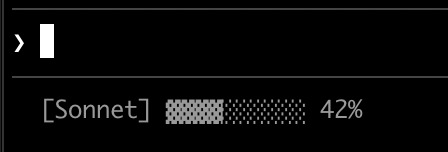
현재 모델과 시각적 프로그레스 바로 컨텍스트 윈도우 사용량을 표시합니다. 각 스크립트는 stdin에서 JSON을 읽고, used_percentage 필드를 추출한 다음, 채워진 블록(▓)이 사용량을 나타내는 10자 바를 만듭니다:
#!/bin/bash
# Read all of stdin into a variable
input=$(cat)

# Extract fields with jq, "// 0" provides fallback for null
MODEL=$(echo "$input" | jq -r '.model.display_name')
PCT=$(echo "$input" | jq -r '.context_window.used_percentage // 0' | cut -d. -f1)

# Build progress bar: printf creates spaces, tr replaces with blocks
BAR_WIDTH=10
FILLED=$((PCT * BAR_WIDTH / 100))
EMPTY=$((BAR_WIDTH - FILLED))
BAR=""
[ "$FILLED" -gt 0 ] && BAR=$(printf "%${FILLED}s" | tr ' ' '▓')
[ "$EMPTY" -gt 0 ] && BAR="${BAR}$(printf "%${EMPTY}s" | tr ' ' '░')"

echo "[$MODEL] $BAR $PCT%"
#!/usr/bin/env python3
import json, sys

# json.load reads and parses stdin in one step
data = json.load(sys.stdin)
model = data['model']['display_name']
# "or 0" handles null values
pct = int(data.get('context_window', {}).get('used_percentage', 0) or 0)

# String multiplication builds the bar
filled = pct * 10 // 100
bar = '▓' * filled + '░' * (10 - filled)

print(f"[{model}] {bar} {pct}%")
#!/usr/bin/env node
// Node.js reads stdin asynchronously with events
let input = '';
process.stdin.on('data', chunk => input += chunk);
process.stdin.on('end', () => {
    const data = JSON.parse(input);
    const model = data.model.display_name;
    // Optional chaining (?.) safely handles null fields
    const pct = Math.floor(data.context_window?.used_percentage || 0);

    // String.repeat() builds the bar
    const filled = Math.floor(pct * 10 / 100);
    const bar = '▓'.repeat(filled) + '░'.repeat(10 - filled);

    console.log(`[${model}] ${bar} ${pct}%`);
});
색상이 있는 Git 상태
색상으로 구분된 staged 및 modified 파일 표시기와 함께 git 브랜치를 표시합니다. 이 스크립트는 터미널 색상을 위해 ANSI 이스케이프 코드를 사용합니다: \033[32m은 녹색, \033[33m은 노란색, \033[0m은 기본값으로 리셋합니다.
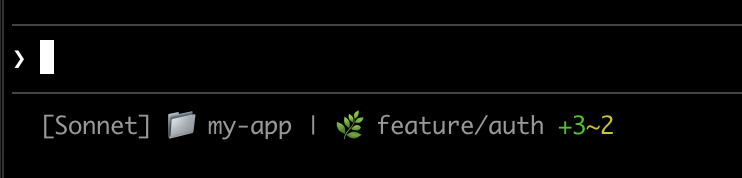
각 스크립트는 현재 디렉토리가 git 저장소인지 확인하고, staged 및 modified 파일 수를 세고, 색상으로 구분된 표시기를 표시합니다:
#!/bin/bash
input=$(cat)

MODEL=$(echo "$input" | jq -r '.model.display_name')
DIR=$(echo "$input" | jq -r '.workspace.current_dir')

GREEN='\033[32m'
YELLOW='\033[33m'
RESET='\033[0m'

if git rev-parse --git-dir > /dev/null 2>&1; then
    BRANCH=$(git branch --show-current 2>/dev/null)
    STAGED=$(git diff --cached --numstat 2>/dev/null | wc -l | tr -d ' ')
    MODIFIED=$(git diff --numstat 2>/dev/null | wc -l | tr -d ' ')

    GIT_STATUS=""
    [ "$STAGED" -gt 0 ] && GIT_STATUS="${GREEN}+${STAGED}${RESET}"
    [ "$MODIFIED" -gt 0 ] && GIT_STATUS="${GIT_STATUS}${YELLOW}~${MODIFIED}${RESET}"

    echo -e "[$MODEL] 📁 ${DIR##*/} | 🌿 $BRANCH $GIT_STATUS"
else
    echo "[$MODEL] 📁 ${DIR##*/}"
fi
#!/usr/bin/env python3
import json, sys, subprocess, os

data = json.load(sys.stdin)
model = data['model']['display_name']
directory = os.path.basename(data['workspace']['current_dir'])

GREEN, YELLOW, RESET = '\033[32m', '\033[33m', '\033[0m'

try:
    subprocess.check_output(['git', 'rev-parse', '--git-dir'], stderr=subprocess.DEVNULL)
    branch = subprocess.check_output(['git', 'branch', '--show-current'], text=True).strip()
    staged_output = subprocess.check_output(['git', 'diff', '--cached', '--numstat'], text=True).strip()
    modified_output = subprocess.check_output(['git', 'diff', '--numstat'], text=True).strip()
    staged = len(staged_output.split('\n')) if staged_output else 0
    modified = len(modified_output.split('\n')) if modified_output else 0

    git_status = f"{GREEN}+{staged}{RESET}" if staged else ""
    git_status += f"{YELLOW}~{modified}{RESET}" if modified else ""

    print(f"[{model}] 📁 {directory} | 🌿 {branch} {git_status}")
except:
    print(f"[{model}] 📁 {directory}")
#!/usr/bin/env node
const { execSync } = require('child_process');
const path = require('path');

let input = '';
process.stdin.on('data', chunk => input += chunk);
process.stdin.on('end', () => {
    const data = JSON.parse(input);
    const model = data.model.display_name;
    const dir = path.basename(data.workspace.current_dir);

    const GREEN = '\x1b[32m', YELLOW = '\x1b[33m', RESET = '\x1b[0m';

    try {
        execSync('git rev-parse --git-dir', { stdio: 'ignore' });
        const branch = execSync('git branch --show-current', { encoding: 'utf8' }).trim();
        const staged = execSync('git diff --cached --numstat', { encoding: 'utf8' }).trim().split('\n').filter(Boolean).length;
        const modified = execSync('git diff --numstat', { encoding: 'utf8' }).trim().split('\n').filter(Boolean).length;

        let gitStatus = staged ? `${GREEN}+${staged}${RESET}` : '';
        gitStatus += modified ? `${YELLOW}~${modified}${RESET}` : '';

        console.log(`[${model}] 📁 ${dir} | 🌿 ${branch} ${gitStatus}`);
    } catch {
        console.log(`[${model}] 📁 ${dir}`);
    }
});
비용 및 시간 추적
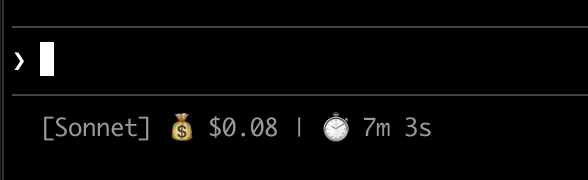
세션의 API 비용과 경과 시간을 추적합니다. cost.total_cost_usd 필드는 현재 세션의 모든 API 호출 비용을 누적합니다. cost.total_duration_ms 필드는 세션 시작 이후의 총 경과 시간을, cost.total_api_duration_ms는 API 응답 대기에 소요된 시간만 추적합니다.
각 스크립트는 비용을 통화로 포맷하고 밀리초를 분과 초로 변환합니다:
#!/bin/bash
input=$(cat)

MODEL=$(echo "$input" | jq -r '.model.display_name')
COST=$(echo "$input" | jq -r '.cost.total_cost_usd // 0')
DURATION_MS=$(echo "$input" | jq -r '.cost.total_duration_ms // 0')

COST_FMT=$(printf '$%.2f' "$COST")
DURATION_SEC=$((DURATION_MS / 1000))
MINS=$((DURATION_SEC / 60))
SECS=$((DURATION_SEC % 60))

echo "[$MODEL] 💰 $COST_FMT | ⏱️ ${MINS}m ${SECS}s"
#!/usr/bin/env python3
import json, sys

data = json.load(sys.stdin)
model = data['model']['display_name']
cost = data.get('cost', {}).get('total_cost_usd', 0) or 0
duration_ms = data.get('cost', {}).get('total_duration_ms', 0) or 0

duration_sec = duration_ms // 1000
mins, secs = duration_sec // 60, duration_sec % 60

print(f"[{model}] 💰 ${cost:.2f} | ⏱️ {mins}m {secs}s")
#!/usr/bin/env node
let input = '';
process.stdin.on('data', chunk => input += chunk);
process.stdin.on('end', () => {
    const data = JSON.parse(input);
    const model = data.model.display_name;
    const cost = data.cost?.total_cost_usd || 0;
    const durationMs = data.cost?.total_duration_ms || 0;

    const durationSec = Math.floor(durationMs / 1000);
    const mins = Math.floor(durationSec / 60);
    const secs = durationSec % 60;

    console.log(`[${model}] 💰 $${cost.toFixed(2)} | ⏱️ ${mins}m ${secs}s`);
});
멀티라인 표시
스크립트는 여러 줄을 출력하여 더 풍부한 표시를 만들 수 있습니다. 각 echo 문은 상태 영역에서 별도의 행을 생성합니다.
이 예제는 여러 기법을 결합합니다: 임계값 기반 색상(70% 미만은 녹색, 70-89%는 노란색, 90% 이상은 빨간색), 프로그레스 바, git 브랜치 정보. 각 print 또는 echo 문은 별도의 행을 생성합니다:
#!/bin/bash
input=$(cat)

MODEL=$(echo "$input" | jq -r '.model.display_name')
DIR=$(echo "$input" | jq -r '.workspace.current_dir')
COST=$(echo "$input" | jq -r '.cost.total_cost_usd // 0')
PCT=$(echo "$input" | jq -r '.context_window.used_percentage // 0' | cut -d. -f1)
DURATION_MS=$(echo "$input" | jq -r '.cost.total_duration_ms // 0')

CYAN='\033[36m'; GREEN='\033[32m'; YELLOW='\033[33m'; RED='\033[31m'; RESET='\033[0m'

# Pick bar color based on context usage
if [ "$PCT" -ge 90 ]; then BAR_COLOR="$RED"
elif [ "$PCT" -ge 70 ]; then BAR_COLOR="$YELLOW"
else BAR_COLOR="$GREEN"; fi

FILLED=$((PCT / 10)); EMPTY=$((10 - FILLED))
BAR=$(printf "%${FILLED}s" | tr ' ' '█')$(printf "%${EMPTY}s" | tr ' ' '░')

MINS=$((DURATION_MS / 60000)); SECS=$(((DURATION_MS % 60000) / 1000))

BRANCH=""
git rev-parse --git-dir > /dev/null 2>&1 && BRANCH=" | 🌿 $(git branch --show-current 2>/dev/null)"

echo -e "${CYAN}[$MODEL]${RESET} 📁 ${DIR##*/}$BRANCH"
COST_FMT=$(printf '$%.2f' "$COST")
echo -e "${BAR_COLOR}${BAR}${RESET} ${PCT}% | ${YELLOW}${COST_FMT}${RESET} | ⏱️ ${MINS}m ${SECS}s"
#!/usr/bin/env python3
import json, sys, subprocess, os

data = json.load(sys.stdin)
model = data['model']['display_name']
directory = os.path.basename(data['workspace']['current_dir'])
cost = data.get('cost', {}).get('total_cost_usd', 0) or 0
pct = int(data.get('context_window', {}).get('used_percentage', 0) or 0)
duration_ms = data.get('cost', {}).get('total_duration_ms', 0) or 0

CYAN, GREEN, YELLOW, RED, RESET = '\033[36m', '\033[32m', '\033[33m', '\033[31m', '\033[0m'

bar_color = RED if pct >= 90 else YELLOW if pct >= 70 else GREEN
filled = pct // 10
bar = '█' * filled + '░' * (10 - filled)

mins, secs = duration_ms // 60000, (duration_ms % 60000) // 1000

try:
    branch = subprocess.check_output(['git', 'branch', '--show-current'], text=True, stderr=subprocess.DEVNULL).strip()
    branch = f" | 🌿 {branch}" if branch else ""
except:
    branch = ""

print(f"{CYAN}[{model}]{RESET} 📁 {directory}{branch}")
print(f"{bar_color}{bar}{RESET} {pct}% | {YELLOW}${cost:.2f}{RESET} | ⏱️ {mins}m {secs}s")
#!/usr/bin/env node
const { execSync } = require('child_process');
const path = require('path');

let input = '';
process.stdin.on('data', chunk => input += chunk);
process.stdin.on('end', () => {
    const data = JSON.parse(input);
    const model = data.model.display_name;
    const dir = path.basename(data.workspace.current_dir);
    const cost = data.cost?.total_cost_usd || 0;
    const pct = Math.floor(data.context_window?.used_percentage || 0);
    const durationMs = data.cost?.total_duration_ms || 0;

    const CYAN = '\x1b[36m', GREEN = '\x1b[32m', YELLOW = '\x1b[33m', RED = '\x1b[31m', RESET = '\x1b[0m';

    const barColor = pct >= 90 ? RED : pct >= 70 ? YELLOW : GREEN;
    const filled = Math.floor(pct / 10);
    const bar = '█'.repeat(filled) + '░'.repeat(10 - filled);

    const mins = Math.floor(durationMs / 60000);
    const secs = Math.floor((durationMs % 60000) / 1000);

    let branch = '';
    try {
        branch = execSync('git branch --show-current', { encoding: 'utf8', stdio: ['pipe', 'pipe', 'ignore'] }).trim();
        branch = branch ? ` | 🌿 ${branch}` : '';
    } catch {}

    console.log(`${CYAN}[${model}]${RESET} 📁 ${dir}${branch}`);
    console.log(`${barColor}${bar}${RESET} ${pct}% | ${YELLOW}$${cost.toFixed(2)}${RESET} | ⏱️ ${mins}m ${secs}s`);
});
클릭 가능한 링크
이 예제는 GitHub 저장소로의 클릭 가능한 링크를 생성합니다. git remote URL을 읽고, sed로 SSH 형식을 HTTPS로 변환한 다음, 저장소 이름을 OSC 8 이스케이프 코드로 감쌉니다. Cmd(macOS) 또는 Ctrl(Windows/Linux)을 누른 채 클릭하면 브라우저에서 링크가 열립니다.
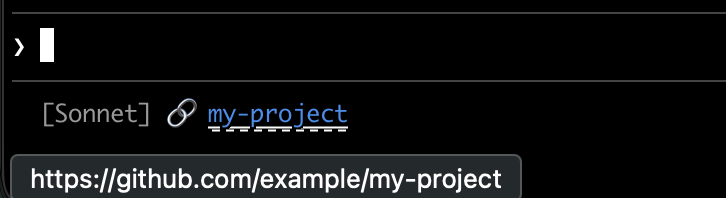
각 스크립트는 git remote URL을 가져오고, SSH 형식을 HTTPS로 변환한 다음, 저장소 이름을 OSC 8 이스케이프 코드로 감쌉니다. Bash 버전은 다양한 셸에서 echo -e보다 더 안정적으로 백슬래시 이스케이프를 해석하는 printf '%b'를 사용합니다:
#!/bin/bash
input=$(cat)

MODEL=$(echo "$input" | jq -r '.model.display_name')

# Convert git SSH URL to HTTPS
REMOTE=$(git remote get-url origin 2>/dev/null | sed 's/[email protected]:/https:\/\/github.com\//' | sed 's/\.git$//')

if [ -n "$REMOTE" ]; then
    REPO_NAME=$(basename "$REMOTE")
    # OSC 8 format: \e]8;;URL\a then TEXT then \e]8;;\a
    # printf %b interprets escape sequences reliably across shells
    printf '%b' "[$MODEL] 🔗 \e]8;;${REMOTE}\a${REPO_NAME}\e]8;;\a\n"
else
    echo "[$MODEL]"
fi
#!/usr/bin/env python3
import json, sys, subprocess, re, os

data = json.load(sys.stdin)
model = data['model']['display_name']

# Get git remote URL
try:
    remote = subprocess.check_output(
        ['git', 'remote', 'get-url', 'origin'],
        stderr=subprocess.DEVNULL, text=True
    ).strip()
    # Convert SSH to HTTPS format
    remote = re.sub(r'^git@github\.com:', 'https://github.com/', remote)
    remote = re.sub(r'\.git$', '', remote)
    repo_name = os.path.basename(remote)
    # OSC 8 escape sequences
    link = f"\033]8;;{remote}\a{repo_name}\033]8;;\a"
    print(f"[{model}] 🔗 {link}")
except:
    print(f"[{model}]")
#!/usr/bin/env node
const { execSync } = require('child_process');
const path = require('path');

let input = '';
process.stdin.on('data', chunk => input += chunk);
process.stdin.on('end', () => {
    const data = JSON.parse(input);
    const model = data.model.display_name;

    try {
        let remote = execSync('git remote get-url origin', { encoding: 'utf8', stdio: ['pipe', 'pipe', 'ignore'] }).trim();
        // Convert SSH to HTTPS format
        remote = remote.replace(/^git@github\.com:/, 'https://github.com/').replace(/\.git$/, '');
        const repoName = path.basename(remote);
        // OSC 8 escape sequences
        const link = `\x1b]8;;${remote}\x07${repoName}\x1b]8;;\x07`;
        console.log(`[${model}] 🔗 ${link}`);
    } catch {
        console.log(`[${model}]`);
    }
});
비용이 큰 작업 캐싱
상태 표시줄 스크립트는 활성 세션 동안 자주 실행됩니다. git status나 git diff와 같은 명령어는 특히 대규모 저장소에서 느릴 수 있습니다. 이 예제는 git 정보를 임시 파일에 캐시하고 5초마다만 갱신합니다.
캐시 파일에는 /tmp/statusline-git-cache와 같은 안정적이고 고정된 파일명을 사용하세요. 각 상태 표시줄 호출은 새로운 프로세스로 실행되므로, $$, os.getpid(), process.pid와 같은 프로세스 기반 식별자는 매번 다른 값을 생성하여 캐시가 재사용되지 않습니다.
각 스크립트는 캐시 파일이 없거나 5초보다 오래된 경우에만 git 명령어를 실행합니다:
#!/bin/bash
input=$(cat)

MODEL=$(echo "$input" | jq -r '.model.display_name')
DIR=$(echo "$input" | jq -r '.workspace.current_dir')

CACHE_FILE="/tmp/statusline-git-cache"
CACHE_MAX_AGE=5  # seconds

cache_is_stale() {
    [ ! -f "$CACHE_FILE" ] || \
    # stat -f %m is macOS, stat -c %Y is Linux
    [ $(($(date +%s) - $(stat -f %m "$CACHE_FILE" 2>/dev/null || stat -c %Y "$CACHE_FILE" 2>/dev/null || echo 0))) -gt $CACHE_MAX_AGE ]
}

if cache_is_stale; then
    if git rev-parse --git-dir > /dev/null 2>&1; then
        BRANCH=$(git branch --show-current 2>/dev/null)
        STAGED=$(git diff --cached --numstat 2>/dev/null | wc -l | tr -d ' ')
        MODIFIED=$(git diff --numstat 2>/dev/null | wc -l | tr -d ' ')
        echo "$BRANCH|$STAGED|$MODIFIED" > "$CACHE_FILE"
    else
        echo "||" > "$CACHE_FILE"
    fi
fi

IFS='|' read -r BRANCH STAGED MODIFIED < "$CACHE_FILE"

if [ -n "$BRANCH" ]; then
    echo "[$MODEL] 📁 ${DIR##*/} | 🌿 $BRANCH +$STAGED ~$MODIFIED"
else
    echo "[$MODEL] 📁 ${DIR##*/}"
fi
#!/usr/bin/env python3
import json, sys, subprocess, os, time

data = json.load(sys.stdin)
model = data['model']['display_name']
directory = os.path.basename(data['workspace']['current_dir'])

CACHE_FILE = "/tmp/statusline-git-cache"
CACHE_MAX_AGE = 5  # seconds

def cache_is_stale():
    if not os.path.exists(CACHE_FILE):
        return True
    return time.time() - os.path.getmtime(CACHE_FILE) > CACHE_MAX_AGE

if cache_is_stale():
    try:
        subprocess.check_output(['git', 'rev-parse', '--git-dir'], stderr=subprocess.DEVNULL)
        branch = subprocess.check_output(['git', 'branch', '--show-current'], text=True).strip()
        staged = subprocess.check_output(['git', 'diff', '--cached', '--numstat'], text=True).strip()
        modified = subprocess.check_output(['git', 'diff', '--numstat'], text=True).strip()
        staged_count = len(staged.split('\n')) if staged else 0
        modified_count = len(modified.split('\n')) if modified else 0
        with open(CACHE_FILE, 'w') as f:
            f.write(f"{branch}|{staged_count}|{modified_count}")
    except:
        with open(CACHE_FILE, 'w') as f:
            f.write("||")

with open(CACHE_FILE) as f:
    branch, staged, modified = f.read().strip().split('|')

if branch:
    print(f"[{model}] 📁 {directory} | 🌿 {branch} +{staged} ~{modified}")
else:
    print(f"[{model}] 📁 {directory}")
#!/usr/bin/env node
const { execSync } = require('child_process');
const fs = require('fs');
const path = require('path');

let input = '';
process.stdin.on('data', chunk => input += chunk);
process.stdin.on('end', () => {
    const data = JSON.parse(input);
    const model = data.model.display_name;
    const dir = path.basename(data.workspace.current_dir);

    const CACHE_FILE = '/tmp/statusline-git-cache';
    const CACHE_MAX_AGE = 5; // seconds

    const cacheIsStale = () => {
        if (!fs.existsSync(CACHE_FILE)) return true;
        return (Date.now() / 1000) - fs.statSync(CACHE_FILE).mtimeMs / 1000 > CACHE_MAX_AGE;
    };

    if (cacheIsStale()) {
        try {
            execSync('git rev-parse --git-dir', { stdio: 'ignore' });
            const branch = execSync('git branch --show-current', { encoding: 'utf8' }).trim();
            const staged = execSync('git diff --cached --numstat', { encoding: 'utf8' }).trim().split('\n').filter(Boolean).length;
            const modified = execSync('git diff --numstat', { encoding: 'utf8' }).trim().split('\n').filter(Boolean).length;
            fs.writeFileSync(CACHE_FILE, `${branch}|${staged}|${modified}`);
        } catch {
            fs.writeFileSync(CACHE_FILE, '||');
        }
    }

    const [branch, staged, modified] = fs.readFileSync(CACHE_FILE, 'utf8').trim().split('|');

    if (branch) {
        console.log(`[${model}] 📁 ${dir} | 🌿 ${branch} +${staged} ~${modified}`);
    } else {
        console.log(`[${model}] 📁 ${dir}`);
    }
});
Windows 구성
Windows에서 Claude Code는 Git Bash를 통해 상태 표시줄 명령어를 실행합니다. 해당 셸에서 PowerShell을 호출할 수 있습니다:
{
  "statusLine": {
    "type": "command",
    "command": "powershell -NoProfile -File C:/Users/username/.claude/statusline.ps1"
  }
}
$input_json = $input | Out-String | ConvertFrom-Json
$cwd = $input_json.cwd
$model = $input_json.model.display_name
$used = $input_json.context_window.used_percentage
$dirname = Split-Path $cwd -Leaf

if ($used) {
    Write-Host "$dirname [$model] ctx: $used%"
} else {
    Write-Host "$dirname [$model]"
}
또는 Bash 스크립트를 직접 실행할 수 있습니다:
{
  "statusLine": {
    "type": "command",
    "command": "~/.claude/statusline.sh"
  }
}
#!/usr/bin/env bash
input=$(cat)
cwd=$(echo "$input" | grep -o '"cwd":"[^"]*"' | cut -d'"' -f4)
model=$(echo "$input" | grep -o '"display_name":"[^"]*"' | cut -d'"' -f4)
dirname="${cwd##*[/\\]}"
echo "$dirname [$model]"
팁
- 모의 입력으로 테스트:
echo '{"model":{"display_name":"Opus"},"context_window":{"used_percentage":25}}' | ./statusline.sh - 출력을 짧게 유지: 상태 바의 너비가 제한되어 있으므로, 긴 출력은 잘리거나 어색하게 줄바꿈될 수 있습니다
- 느린 작업 캐싱: 스크립트는 활성 세션 동안 자주 실행되므로,
git status와 같은 명령어는 지연을 유발할 수 있습니다. 처리 방법은 캐싱 예제를 참조하세요.
ccstatusline 및 starship-claude와 같은 커뮤니티 프로젝트는 테마 및 추가 기능이 포함된 사전 구성된 설정을 제공합니다.
문제 해결
상태 표시줄이 나타나지 않음
- 스크립트가 실행 가능한지 확인하세요:
chmod +x ~/.claude/statusline.sh - 스크립트가 stderr가 아닌 stdout으로 출력하는지 확인하세요
- 스크립트를 수동으로 실행하여 출력이 생성되는지 확인하세요
- 설정에서
disableAllHooks가true로 설정되어 있으면, 상태 표시줄도 비활성화됩니다. 이 설정을 제거하거나false로 설정하여 다시 활성화하세요. claude --debug를 실행하여 세션의 첫 번째 상태 표시줄 호출에서의 종료 코드와 stderr를 로깅하세요- Claude에게 설정 파일을 읽고
statusLine명령어를 직접 실행하여 오류를 확인하도록 요청하세요
상태 표시줄에 -- 또는 빈 값이 표시됨
- 첫 번째 API 응답이 완료되기 전에는 필드가
null일 수 있습니다 - jq에서
// 0과 같은 대체값으로 스크립트에서 null 값을 처리하세요 - 여러 메시지 후에도 값이 비어 있으면 Claude Code를 재시작하세요
컨텍스트 백분율이 예상치 못한 값을 표시함
- 누적 합계 대신
used_percentage를 사용하여 정확한 컨텍스트 상태를 확인하세요 total_input_tokens와total_output_tokens는 세션 전체의 누적값이며 컨텍스트 윈도우 크기를 초과할 수 있습니다- 계산 시점의 차이로 인해 컨텍스트 백분율이
/context출력과 다를 수 있습니다
OSC 8 링크가 클릭되지 않음
- 터미널이 OSC 8 하이퍼링크를 지원하는지 확인하세요(iTerm2, Kitty, WezTerm)
- Terminal.app은 클릭 가능한 링크를 지원하지 않습니다
- SSH 및 tmux 세션은 구성에 따라 OSC 시퀀스를 제거할 수 있습니다
\e]8;;과 같은 이스케이프 시퀀스가 리터럴 텍스트로 나타나면, 더 안정적인 이스케이프 처리를 위해echo -e대신printf '%b'를 사용하세요
이스케이프 시퀀스로 인한 표시 오류
- 복잡한 이스케이프 시퀀스(ANSI 색상, OSC 8 링크)는 다른 UI 업데이트와 겹칠 때 가끔 깨진 출력을 유발할 수 있습니다
- 텍스트가 깨진 경우, 스크립트를 일반 텍스트 출력으로 단순화해 보세요
- 이스케이프 코드가 포함된 멀티라인 상태 표시줄은 단일 라인 일반 텍스트보다 렌더링 문제가 발생하기 쉽습니다
스크립트 오류 또는 중단
- 0이 아닌 코드로 종료되거나 출력이 없는 스크립트는 상태 표시줄을 비우게 됩니다
- 느린 스크립트는 완료될 때까지 상태 표시줄 업데이트를 차단합니다. 오래된 출력을 방지하려면 스크립트를 빠르게 유지하세요.
- 느린 스크립트가 실행 중일 때 새로운 업데이트가 트리거되면, 진행 중인 스크립트가 취소됩니다
- 구성하기 전에 모의 입력으로 스크립트를 독립적으로 테스트하세요
알림이 상태 표시줄 행을 공유함
- MCP 서버 오류, 자동 업데이트, 토큰 경고와 같은 시스템 알림은 상태 표시줄과 동일한 행의 오른쪽에 표시됩니다
- verbose 모드를 활성화하면 이 영역에 토큰 카운터가 추가됩니다
- 좁은 터미널에서는 이러한 알림이 상태 표시줄 출력을 잘라낼 수 있습니다